


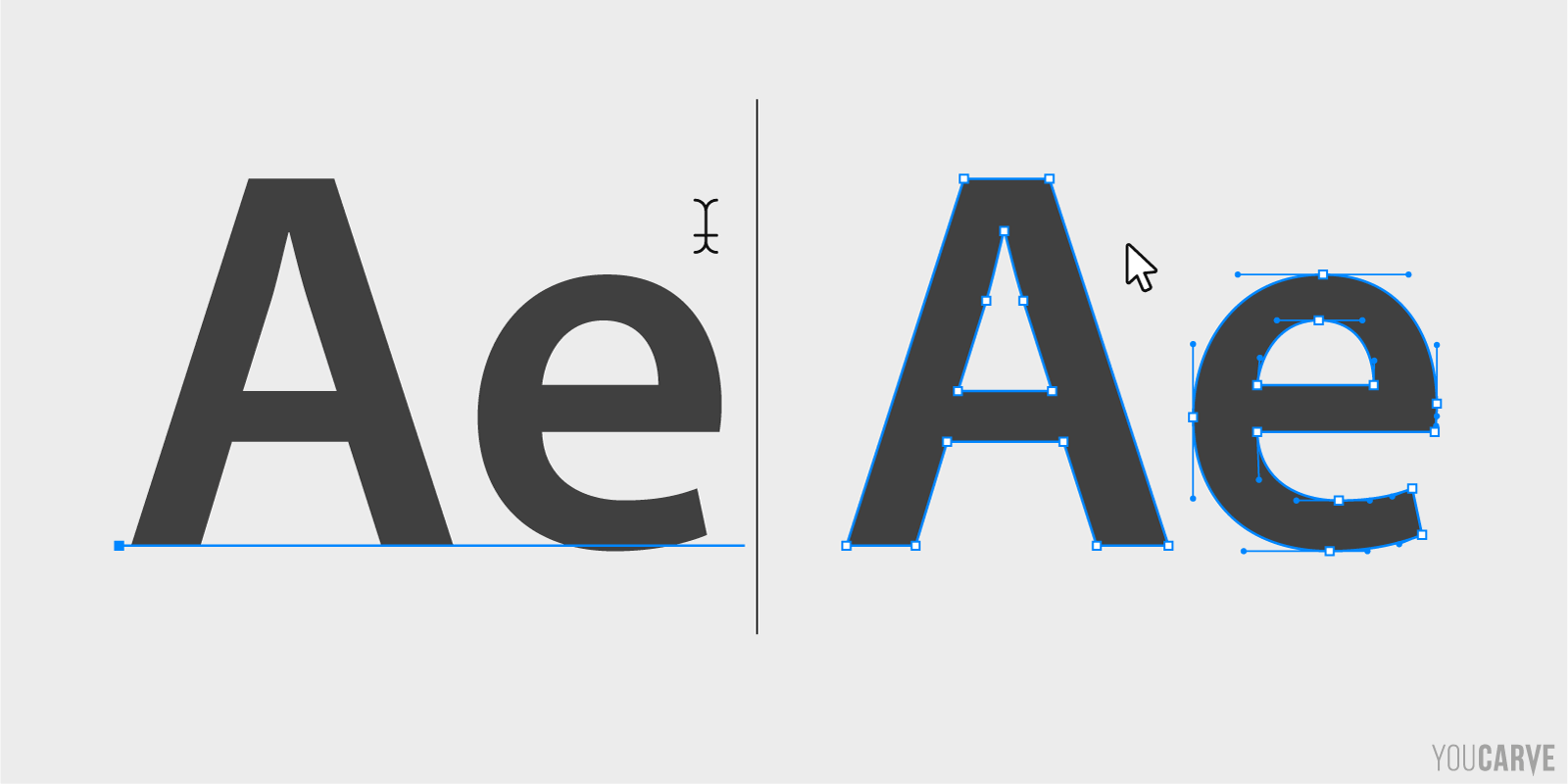
Vectorizing text consists of transforming editable text into vector paths independent of the original font. But what exactly does this mean? And what is the point of this operation? Discover what text vectorization is, why it is essential for logos and graphic projects, and when to use it.
What are we talking about?
The term "vectorize" can designate several distinct operations depending on the context:
Image vectorization: from pixel to vector

Strictly speaking, vectorization refers to the action of transforming an image composed of pixels (also called a "bitmap" image) into an image defined from geometric shapes and paths (segments and Bézier curves) called "vectors".
The reverse operation is called pixelation (or rasterization).
These two image formats offer different advantages: vector images can be resized without loss of quality and are better suited for logos, illustrations, and graphics, while bitmap images (pixels) are better suited for photographs.
Text vectorization: a special case
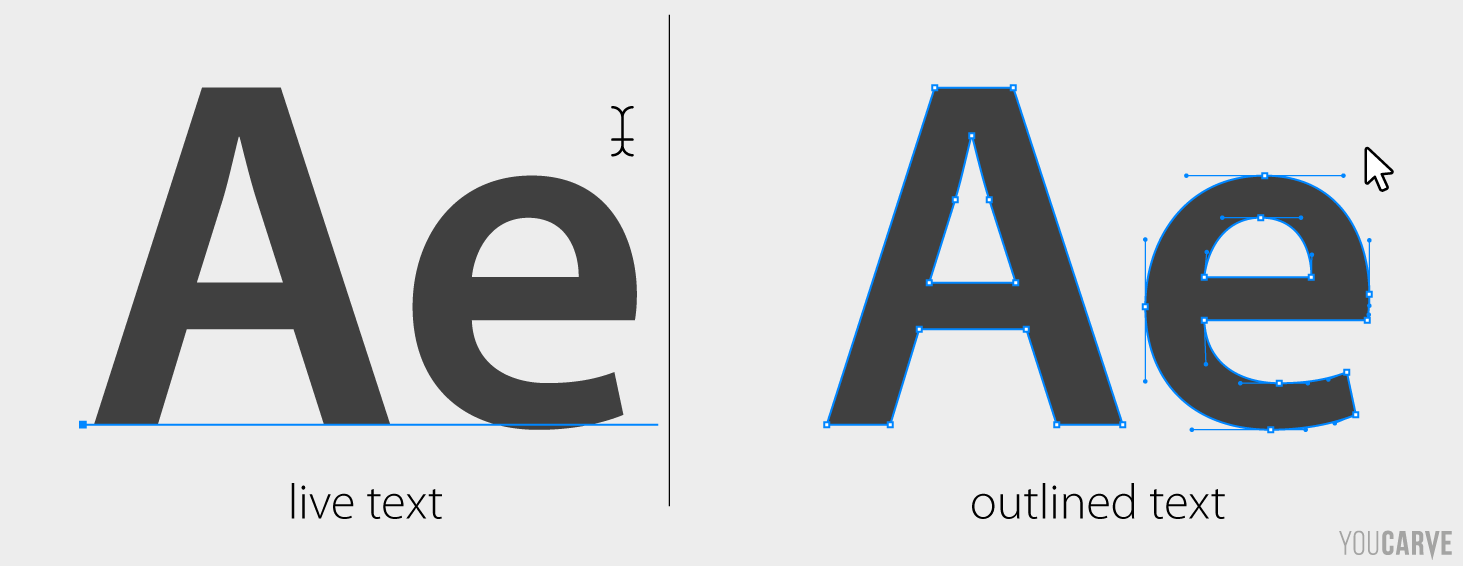
When we talk about vectorizing text in graphic design software, it's a bit different. It is still about obtaining vector paths, but it concerns converting editable text (i.e., where you can change letters and words directly with the keyboard) into vector drawings/paths. Technically, it is actually a misnomer because the display already uses vector information from a font, as we will see right after.
How does text display work in software?
The role of fonts
When you enter text in software, it calls upon a font, usually installed on your computer. Very often the software offers you the possibility to choose from a list of available fonts; it is this choice that will give the aesthetic of your text, depending on whether you use a sans-serif style typography (ex: Helvetica), serif (ex: Palatino) or a more decorative style (ex: Dancing Script).
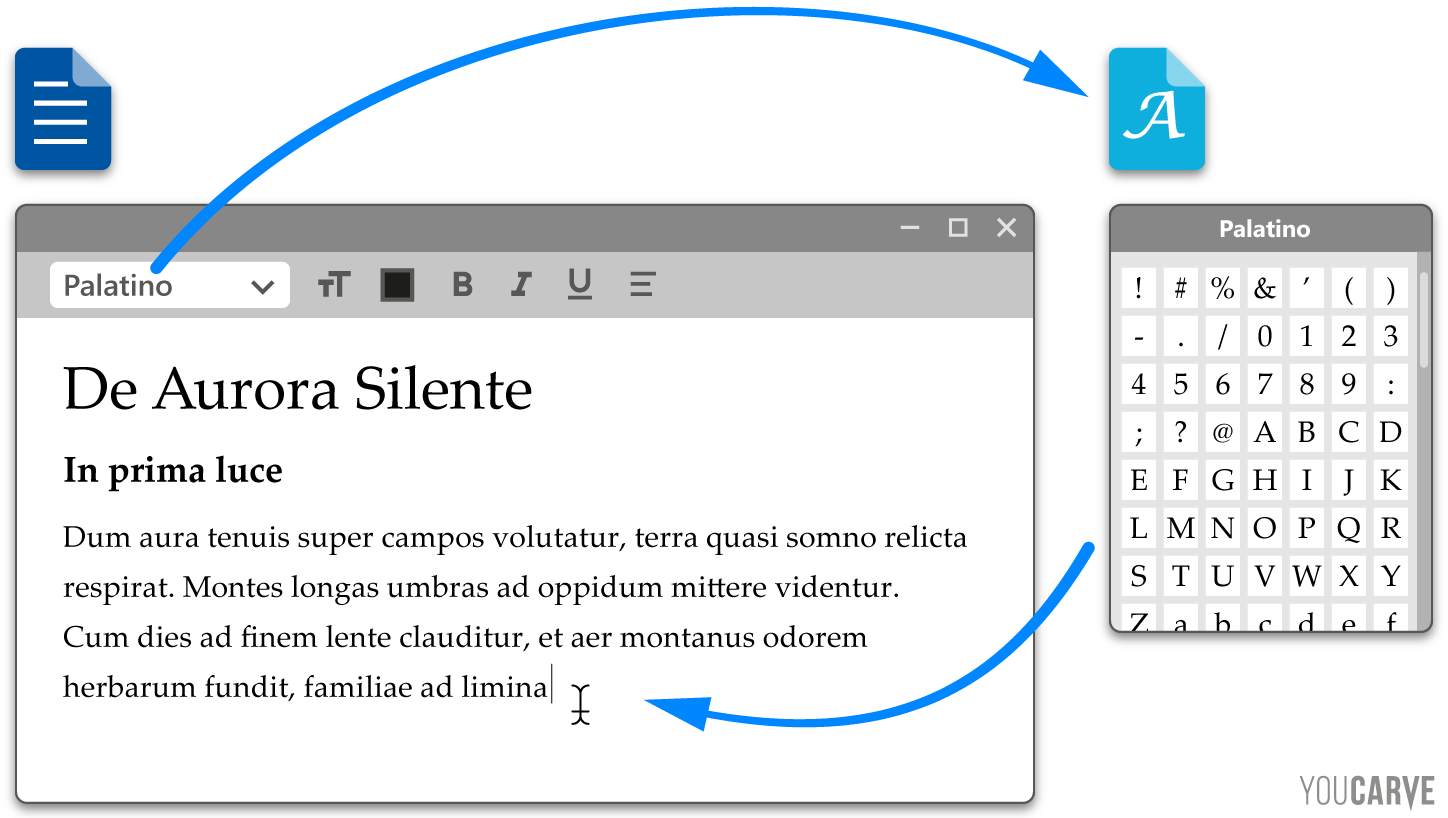
The font is a file that contains the drawings (called glyphs) of all the letters and other signs allowing text to be displayed in a defined aesthetic style. For each letter or character typed on the keyboard, the software automatically retrieves the corresponding drawing from the font to display it on the screen and visually compose your text.
Retrieving vector information from the font
It turns out that the drawings of the different characters of a font are stored in... vector format. So technically we could say that the text is already vector (that's why I explained earlier that the term "vectorize" is a misnomer in this context). Except that the information of these paths is stored in the font, outside your document. Without access to this specific font, the software cannot display your text correctly: it will replace it with a default font or display missing characters.
In vector drawing software (like Illustrator, Inkscape, Affinity...), you can ask the program to retrieve the paths of each letter and integrate them permanently into the file (and no longer have to refer to the original font). The visual rendering remains identical, but in the file structure, the text becomes a set of vector paths with their anchor points and curves.
The drawings of each letter then become modifiable like any geometric shape or logo. On the other hand, the text is no longer editable with the keyboard: you can no longer change words or correct a typo directly. This is what is called "vectorizing text".
Why vectorize text?
Vectorize to customize letter design
Vectorization is essential for creating logos or custom lettering.
Example: to create a company logo, you usually start by using an existing typeface. Then, to make this logo unique and original, you will probably want to subtly modify a letter (round an angle, adjust a curve) or replace a letter with an integrated pictogram. Converting the font to paths then gives you total control over the drawing of each letter.
Vectorize to create a standalone file
Vectorization allows generating a graphic file completely independent of the original font. As long as you have not vectorized your text, if you send your file to a printer or a manufacturer, they must have exactly the same font to display your creation correctly. You could attach the font file, but this implies:
- That the recipient installs the font on their computer
- Risks of compatibility problems between systems (Windows/Mac)
- Usage rights issues (some fonts are protected)
- A potentially different interpretation of data depending on software
With text vectorization, the vector file is self-sufficient and anyone can open it and get exactly the expected rendering. This is why it is generally preferable to vectorize texts before transmitting a graphic file.
Exception: for projects containing very large amounts of text or potentially requiring frequent editorial corrections (brochures, catalogs being finalized), it is recommended to keep the text editable and provide the font(s) used.
What to remember
Editable text
- Advantage: text wording can be modified with the keyboard
- Disadvantage: requires the font alongside the file, otherwise the text will not display correctly.
- Recommended use: long or non-finalized editorial documents
Vectorized text
- Advantages: the graphic file is standalone, it is a "drawing" and its rendering will be identical everywhere. We also have total freedom to retouch the appearance of each letter.
- Disadvantage: text content can no longer be modified (in case of editorial change or spelling mistake).
- Recommended use: logos, signs, production files
For logo cutting, hollow engraving, or custom lettering projects, vectorized text is essential from the quote request to manufacturing, because these processes precisely require vector paths.
How do you practically vectorize text?
In our next article we will cover the main vector file formats (SVG, EPS, AI, PDF...) and show you step by step how to vectorize text in the majority of vector drawing / CAD (computer-aided design) software: Adobe Illustrator, Inkscape, Affinity, Corel Draw, Figma, AutoCAD...